Adding a New Tenant
In short: Add tenants from the property's page, not the Tenants page. Open the property, click Add Tenant, fill in the form, and save.
Steps
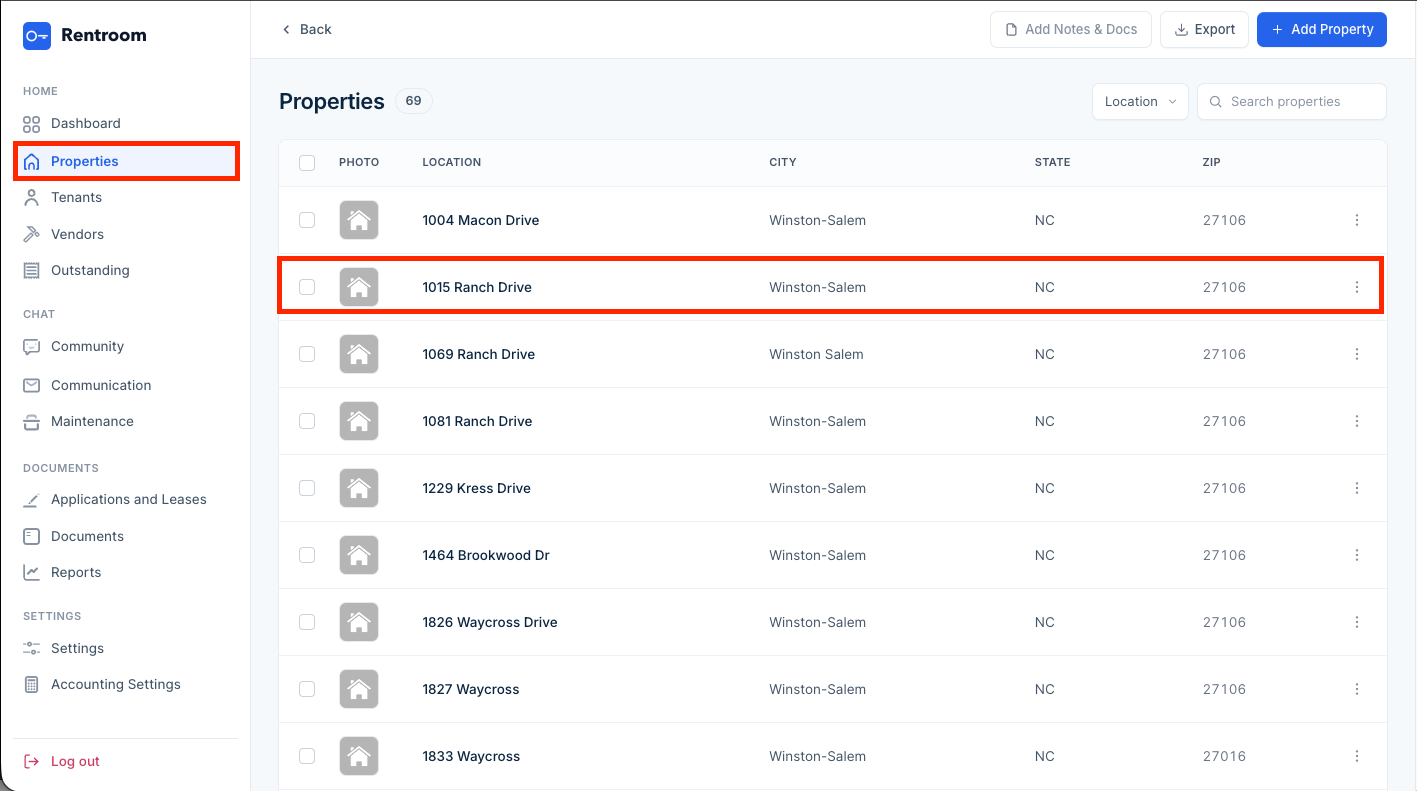
Click Properties in the left menu, then click the property the tenant is moving into.
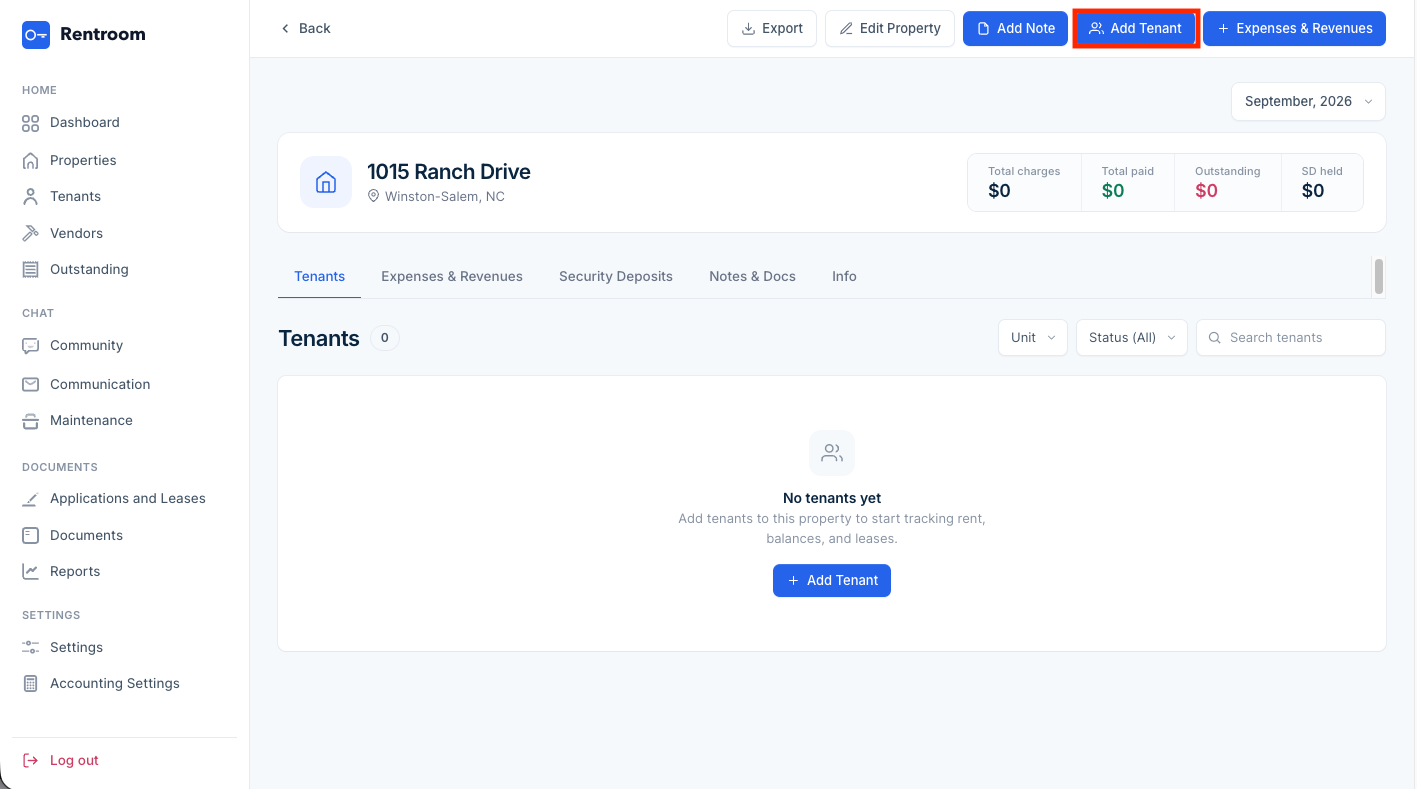
On the property's page, click Add Tenant in the top right.
Fill in the tenant's details:
Name, Email, and Phone Number
City, State, and Apt, Suite, etc. (the unit or suite number)
Rent Price
Lease Start and Lease End
Security Deposit (optional)
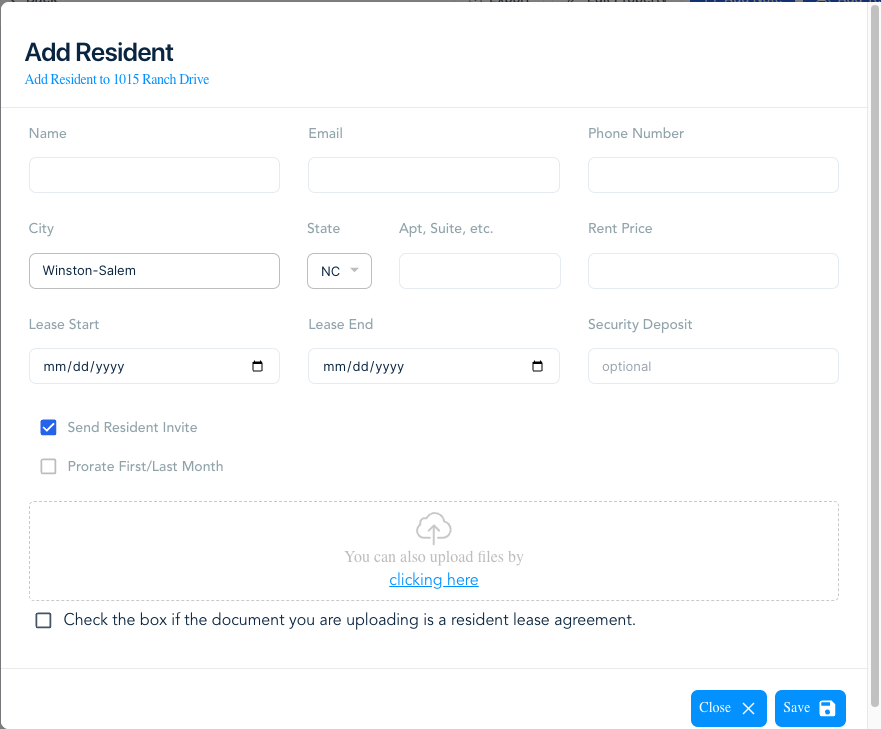
Choose your options:
Send Resident Invite is checked by default. Leave it checked to invite your tenant to the app.
Check Prorate First/Last Month if the lease starts or ends mid-month.
Optional: upload files, such as a signed lease. If it's the lease, check "the document you are uploading is a resident lease agreement."
Click Save.
Don't see your new tenant?
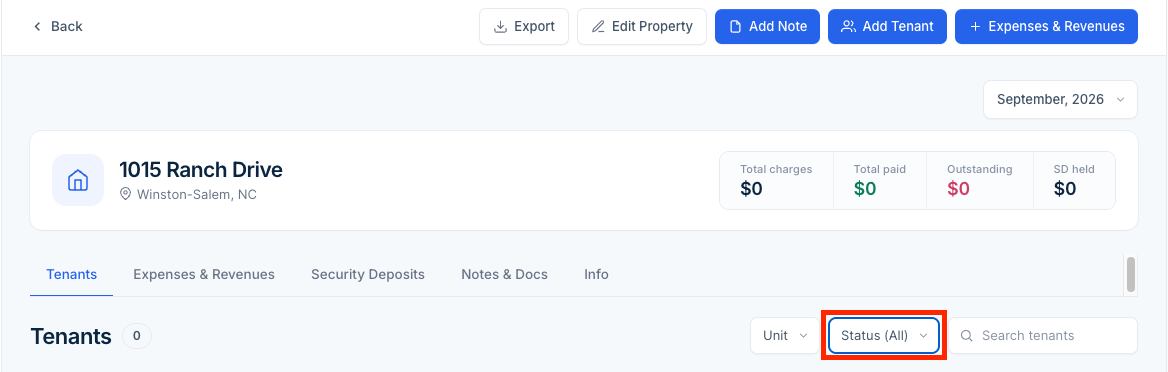
Click the Status filter above the tenant list and choose All. The list shows active tenants by default, and a tenant's status comes from their lease start date. If you added a tenant whose lease starts in the future, they appear as a Future tenant.
Tips
Double-check the phone number. A wrong digit or an extra space at the end means your tenant sees "No Profile Found" when they sign up.
Returning tenant? Use the same phone number as their existing profile. Their profiles will link automatically.
Cosigners share the tenant's login. They don't get their own.
Still stuck? Contact support.