Adding Team Members (Users & Roles)
In short: Give your team their own logins from Settings → Users & Roles. Add the user, choose their role and properties, then send them an invite.
Add a team member
Click Settings in the left menu, then open the Users & Roles tab.
Click Add User in the top right.
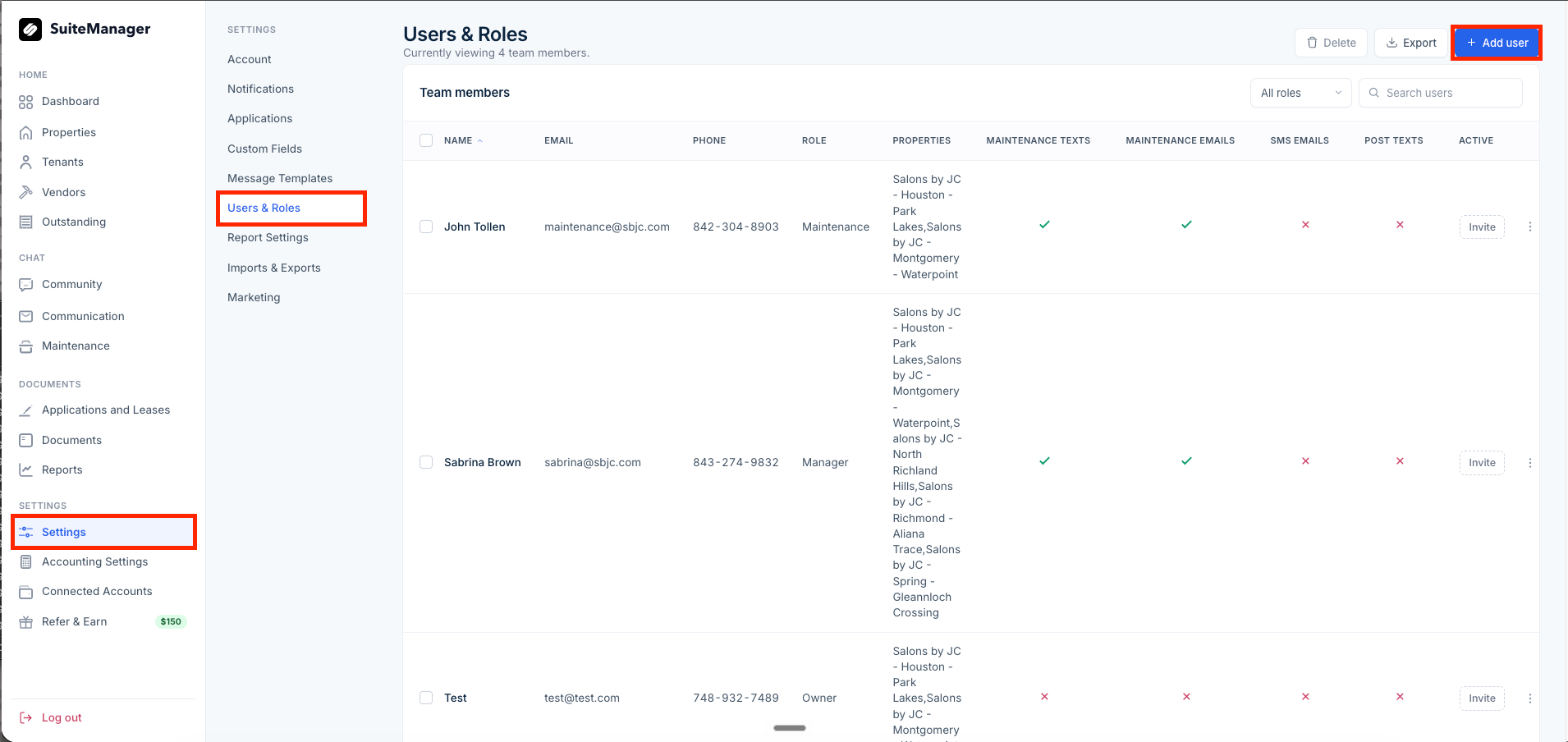
Enter their name, email, and phone number.
Choose their properties. Leave this blank to give them access to all properties.
Choose their role (see below) and save.
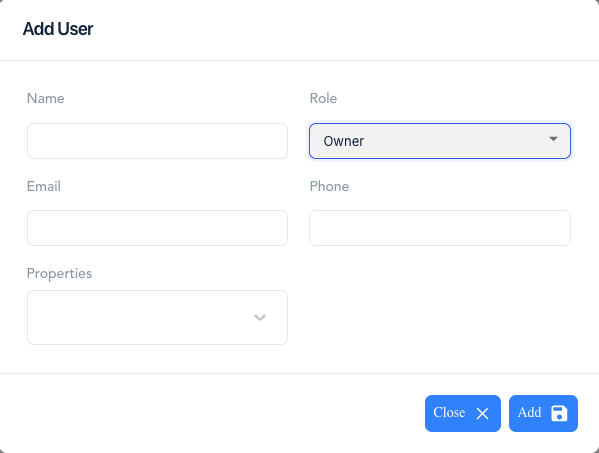
Roles
Manager: full access. Can view and make changes.
Owner: read-only. Can view everything but can't make changes.
Maintenance: access only to maintenance pages and features.
Send the invite
Find the new user in the Users & Roles list.
Click Invite on the right side of their row.
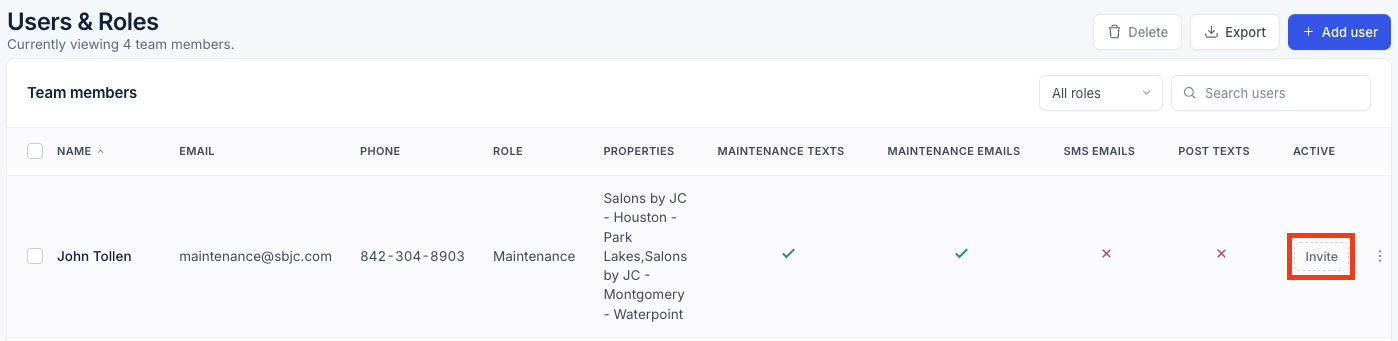
They'll get an email and follow the prompts to create their own account.
Tip: Only give each person the access they need. For example, use Maintenance for your maintenance staff so they can't see payments or tenant ledgers.
Still stuck? Contact support.