Adding a Bank Account
In short: Go to the Payments tab and tap Bank Setup. Connect instantly by logging in to your bank through Plaid, or enter your account and routing numbers and confirm two small test deposits.
Option 1: Connect instantly with Plaid (recommended)
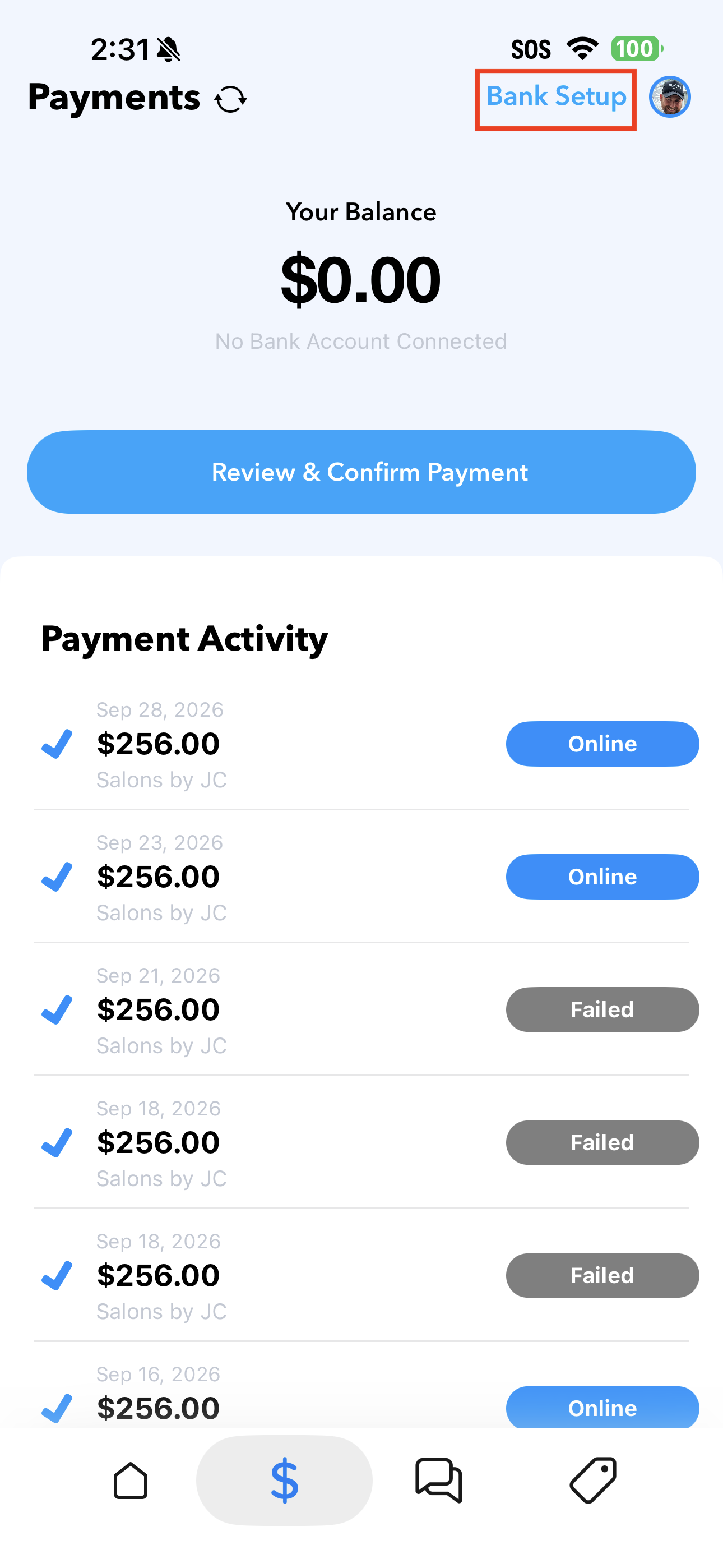
Tap the $ icon at the bottom to open Payments, then tap Bank Setup in the top right.
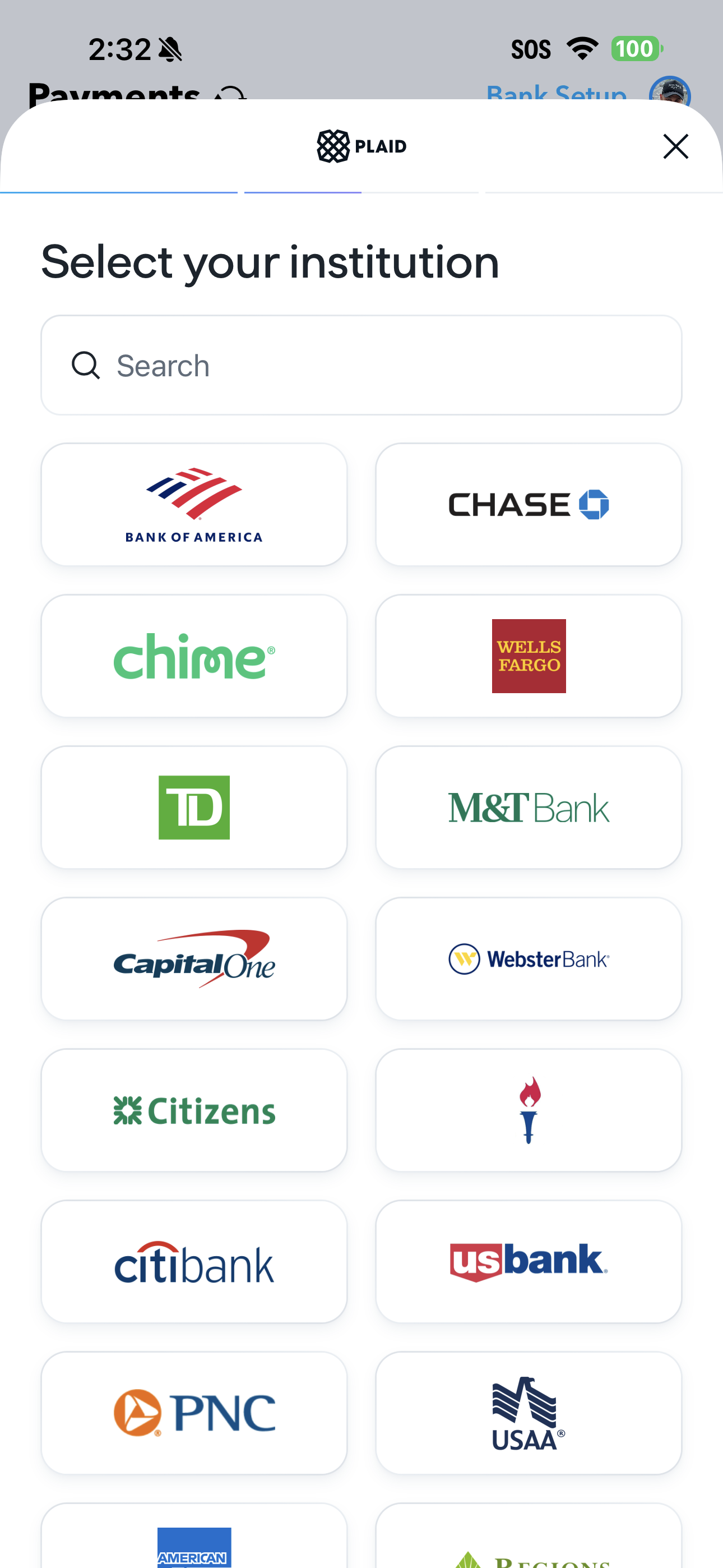
Select your bank from the list, or search for it.
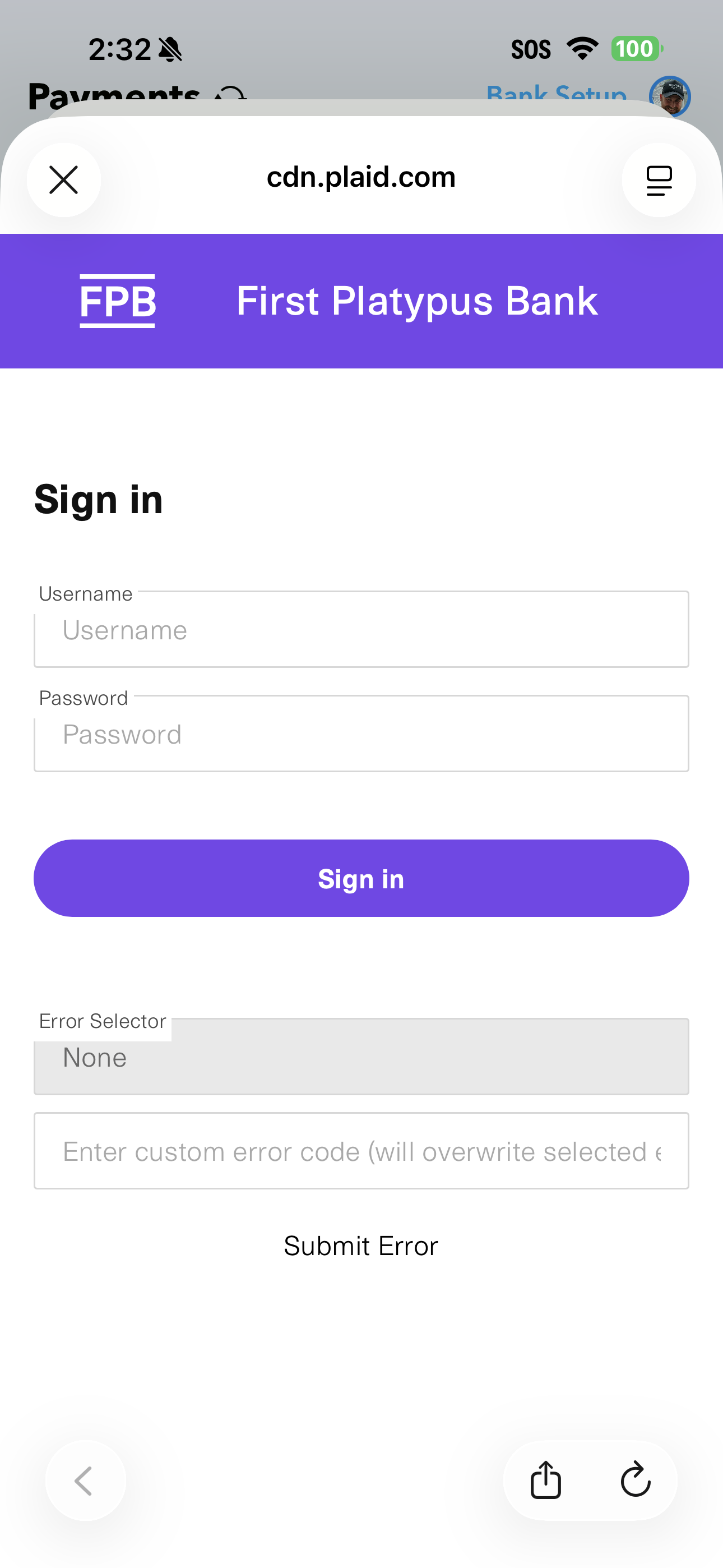
Log in to your bank with your usual online banking username and password. Your bank may text you a security code to verify it's you.
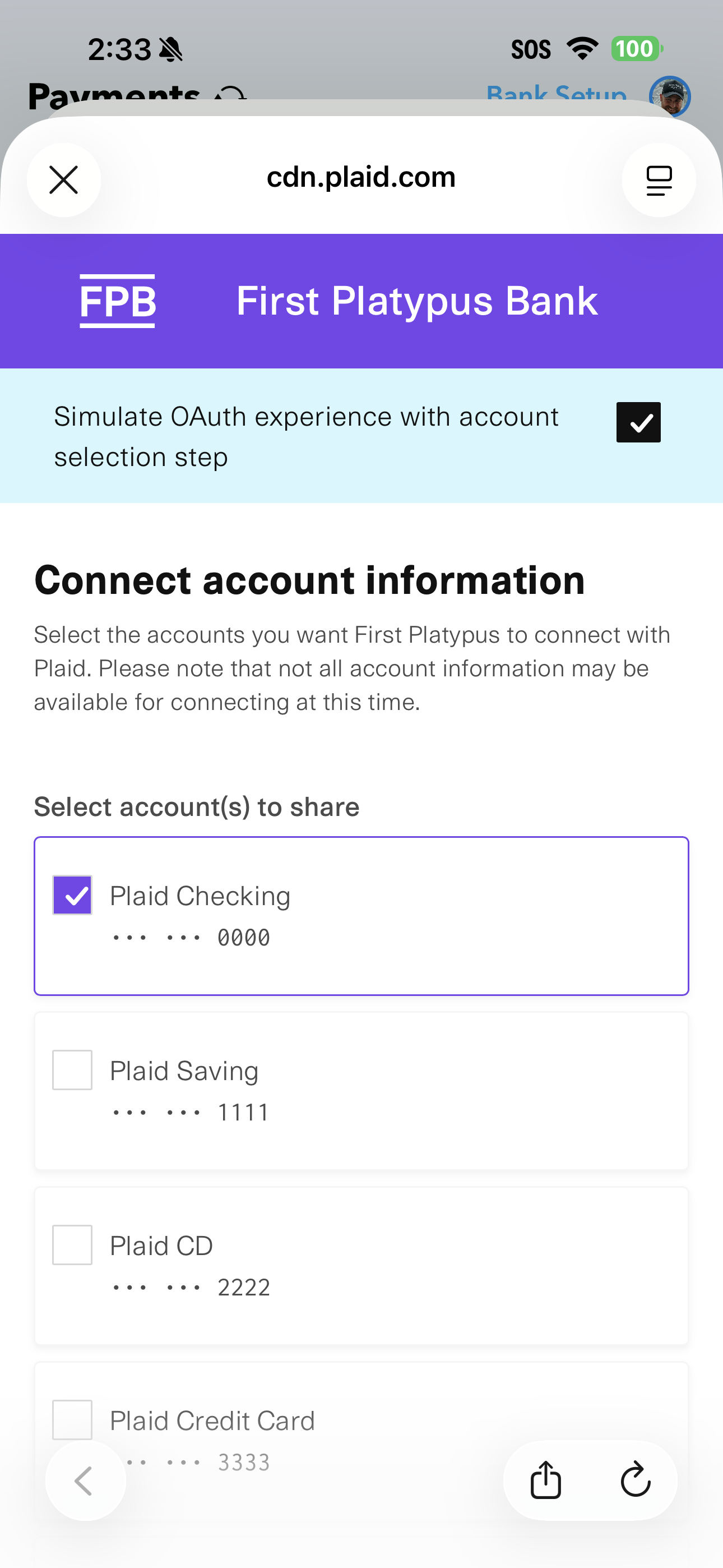
Choose the account you'll pay rent from (usually checking). Make sure Account and routing number is checked, then tap Continue.
Accept the terms and tap Connect account information.
Plaid may offer to save your info to "connect faster next time." This is optional. Tap Finish without saving to skip it.
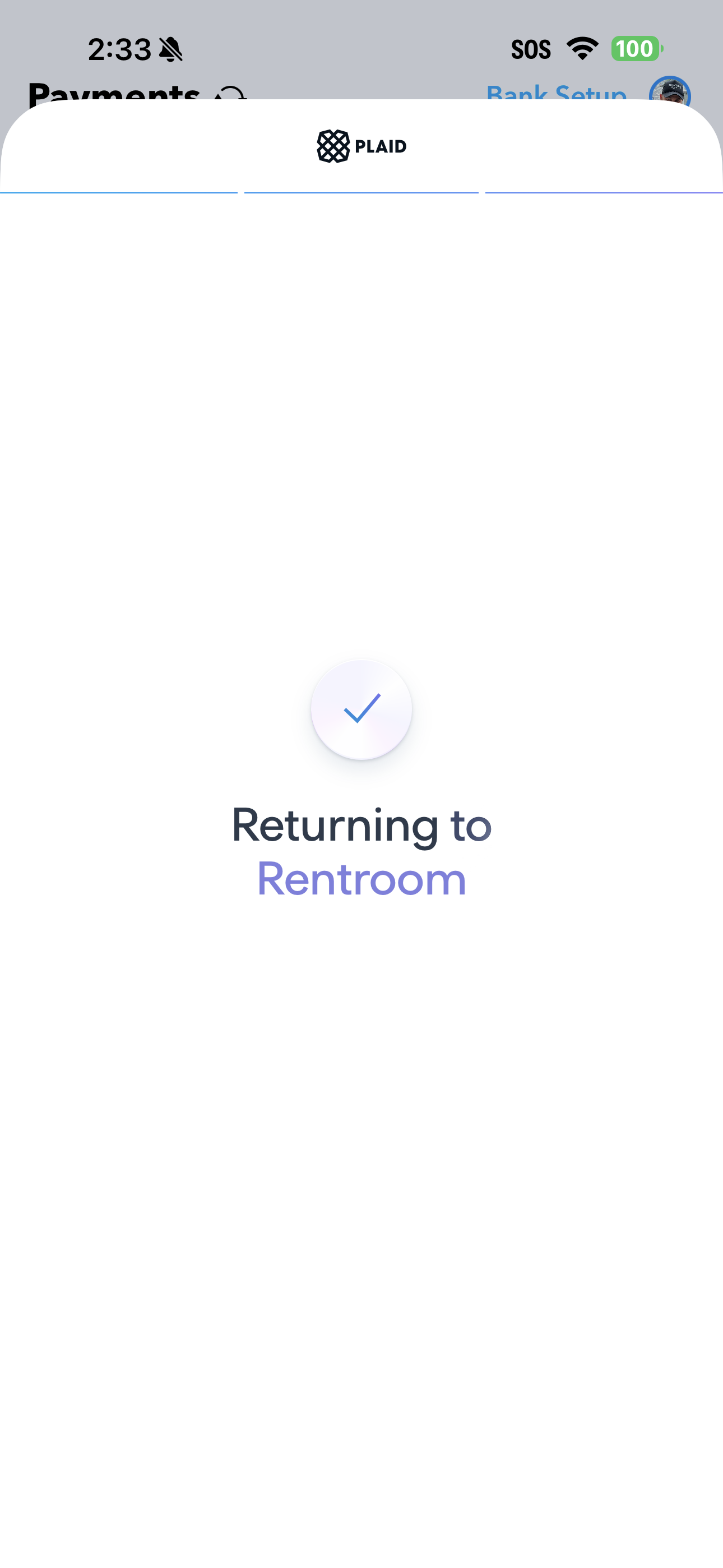
You'll see Returning to Rentroom. Your bank is connected and you're ready to pay.
Option 2: Enter your account and routing numbers
Use this if your bank isn't listed, or you'd rather not log in through Plaid.
Tap Bank Setup. When Plaid opens, tap the X in the top right.
Tap Yes, exit.
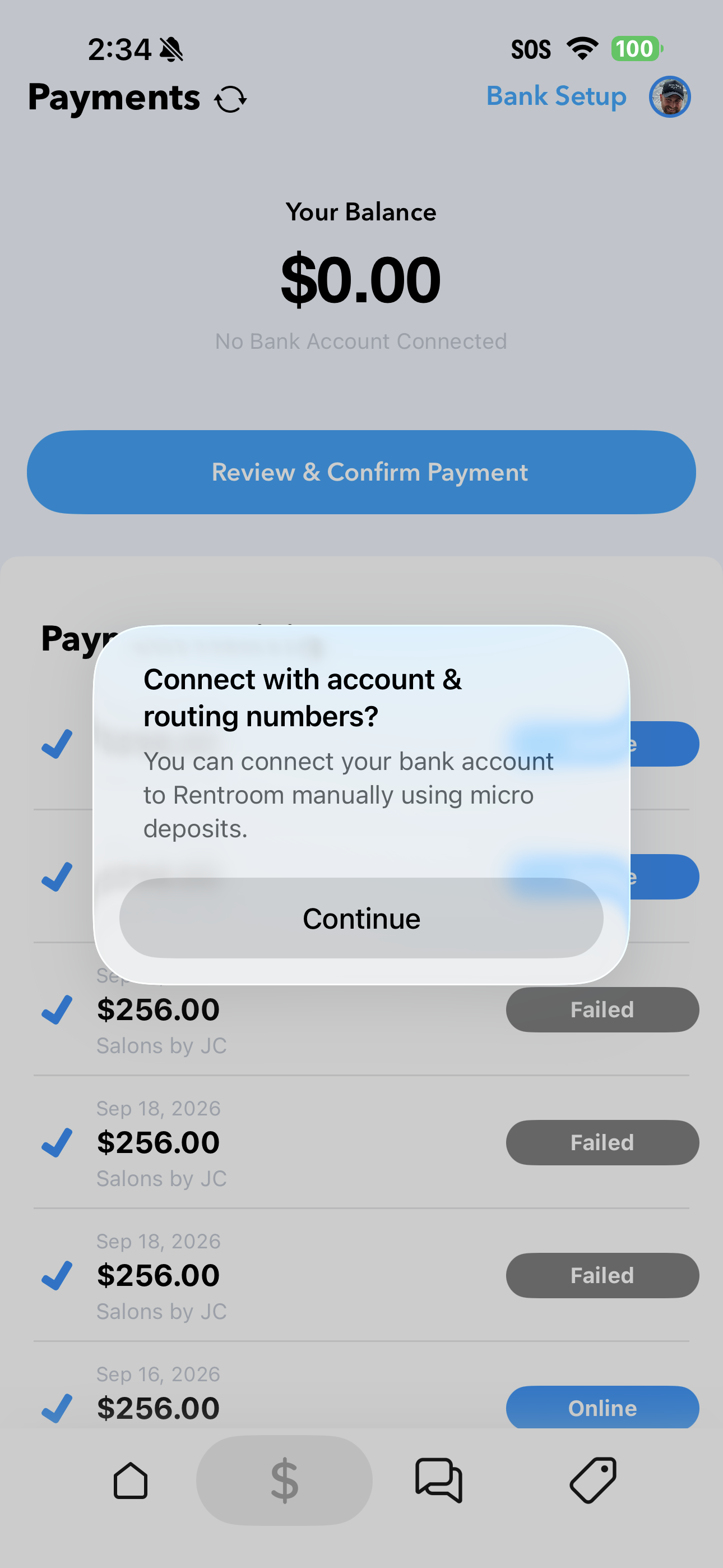
When asked "Connect with account & routing numbers?", tap Continue.
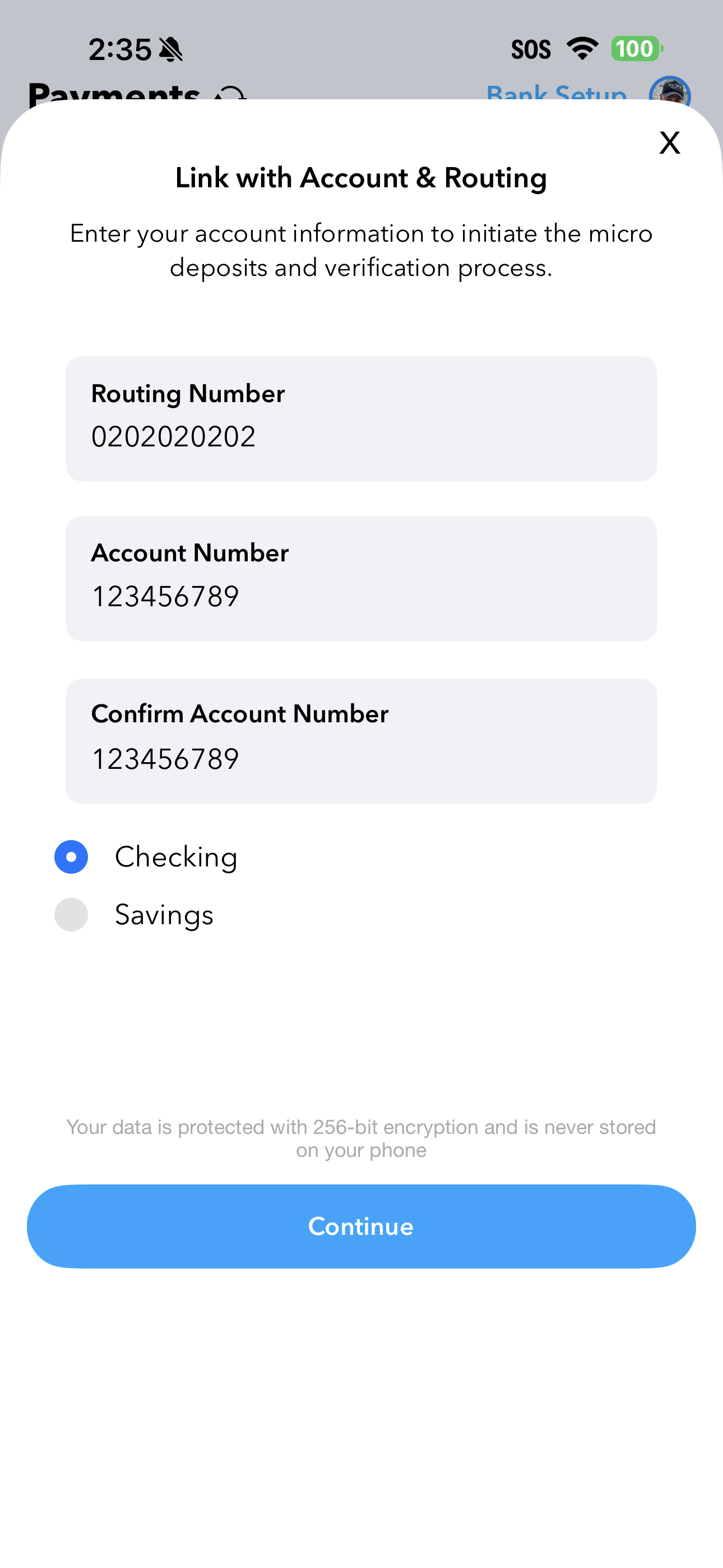
Enter your routing number and account number, confirm the account number, and choose Checking or Savings.
Tap Continue.
Confirm your micro-deposits
If you connected with account and routing numbers, we'll send two small deposits (under $0.10 each) to your account within 1–2 business days. You can't pay rent until you confirm them.
Once the deposits arrive:
Check your bank account for the two small deposits.
In the app, go to Payments and tap Confirm Micro Deposits.
Enter both amounts and submit.
Important: You get 3 tries to enter the amounts correctly. After that, contact support.
Still stuck? Contact support.