Using Message Templates
In short: Save messages you send often, like tour notices, rent reminders or maintenance updates, as message templates. Create them in Settings → Message Templates, then insert one with a click when you message a tenant.
Create a template
Click Settings in the left menu.
Open the Message Templates tab.
Click Add Template in the top right.
Enter a Name you’ll recognize, like “Tour Text.”
Type your Message. Templates can be up to 1,500 characters.
Click Save Changes.
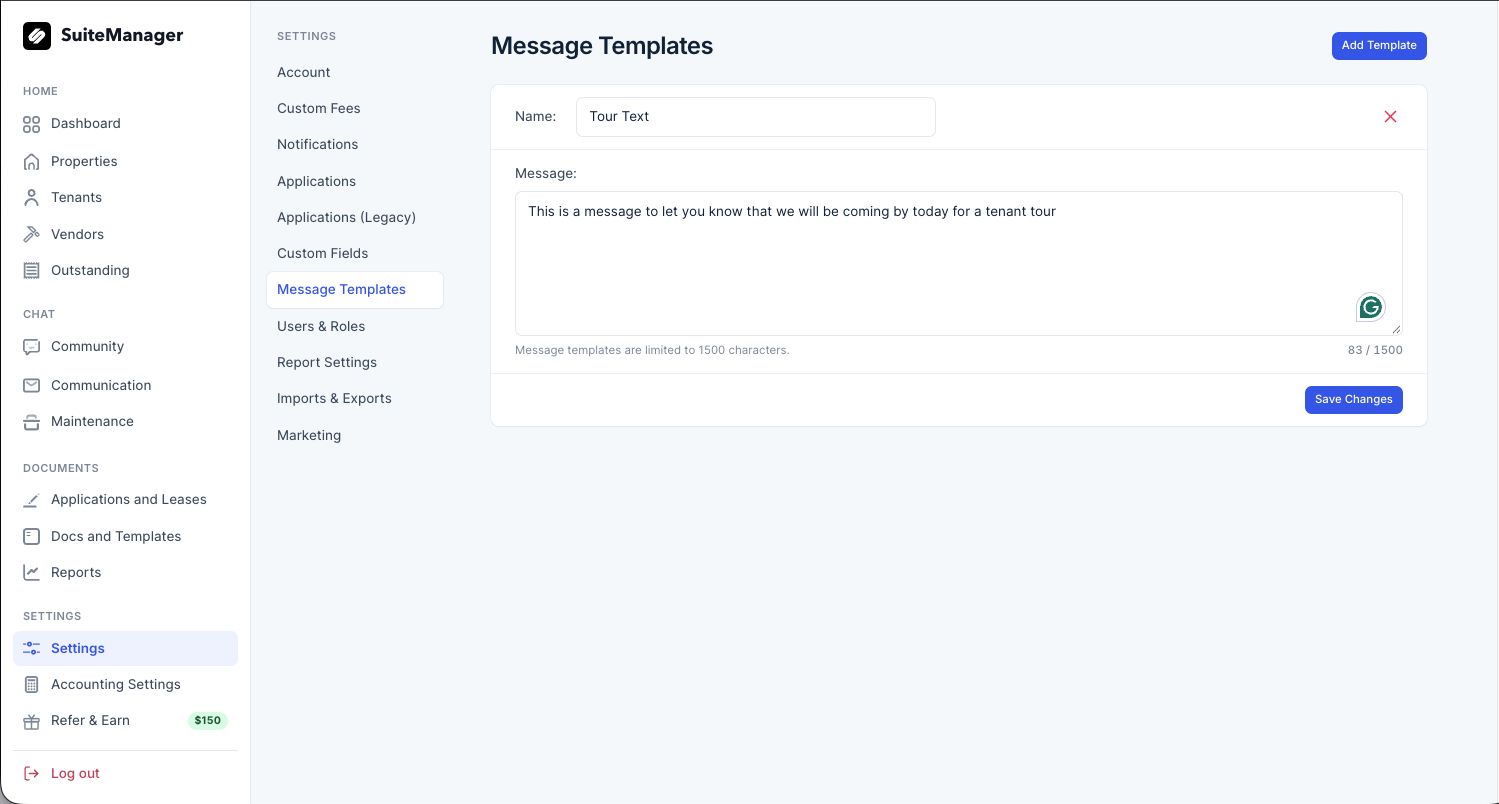
To edit a template, change the text and click Save Changes. To delete one, click the red X in its top right corner.
Use a template in a conversation
Open a conversation in Communication.
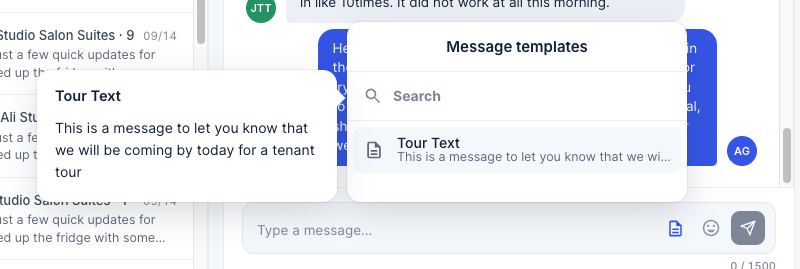
Click the template icon (the small document) next to the message box.
Search for or pick a template. Hover over one to preview the full message.
The template fills in your message box. Edit it if needed, then send.
Use a template in a bulk message
When writing an outgoing message to tenants:
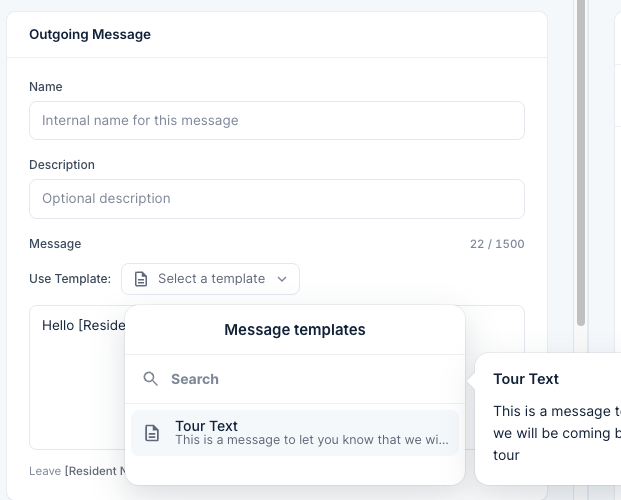
Click Use Template above the message box.
Search for or pick a template.
Review the message, make any edits, then finish and send.
Still stuck? Contact support.